A Lenovo laptop running so slow can disrupt your work and ruin your free time. This guide explains the real causes and shows simple fixes to restore speed.
Simply put, a Lenovo laptop running so slow usually struggles with too many startup apps, low memory, a full hard drive, or heat buildup. You can fix most cases by closing extra programs, updating drivers, adding RAM, or swapping to an SSD.
Key Takeaways
- A Lenovo laptop running so slow often has hidden background apps that eat CPU and memory.
- Swapping a hard drive for an SSD cuts boot time from minutes to under twenty seconds.
- Lenovo Vantage software updates drivers and BIOS to remove known performance bugs.
- Thermal throttling from dust can drop CPU speed by up to 40% according to Intel.
- Windows 11 needs at least 4GB RAM, and many older Lenovo models ship with only that.
What Is Causing Your Lenovo Laptop to Slow Down?
Several clear factors make a laptop drag. You should name the culprit before spending money.
- Startup programs load every boot and steal resources from the start.
- Factory bloatware fills storage and runs hidden tasks in the background.
- Low RAM forces the system to use a slow page file on disk.
- A full hard drive leaves no space for temporary files or updates.
- Outdated drivers through Windows or Lenovo Vantage cause conflicts.
- Malware or fake apps consume power and slow your network connection.
According to Microsoft support, Windows 11 requires at least 4GB of RAM for stable performance. Many Lenovo IdeaPad and ThinkPad units ship with exactly that limit, which leaves zero headroom for modern browsers.
Important: Open Task Manager before buying new parts. You may only need to close apps, not upgrade hardware.
Signs of Each Cause
- High CPU at idle points to a rogue background app or virus.
- Disk usage stuck at 100% signals a failing hard drive or bloatware.
- Memory bar full means you need more RAM or fewer open tabs.
- Hot base with loud fan shows dust or thermal throttling.
How Does a Lenovo Laptop Slow Down Over Time?
Systems degrade in clear stages. Knowing the sequence helps you act early.
- You install new apps that add background services and schedulers.
- Windows pushes feature updates that require more memory and disk.
- The hard drive fills with cached files, old backups, and logs.
- Dust collects in fans and raises the internal temperature.
- The CPU triggers thermal throttling to protect the silicon.
- Programs take longer to open and the system feels frozen.
According to Intel reports, thermal throttling can reduce processor clock speeds by as much as 40% when temperatures pass safe limits. This single issue explains why an older Lenovo suddenly feels weak during summer.
Warning: Opening your laptop to clean fans may void the warranty. Check Lenovo support before prying the case.
What Are the Common Types of Slowdown?
Slowness shows different symptoms. Match your case to the list below.
- Boot slowdown: The laptop takes over two minutes to reach desktop.
- App slowdown: Single programs like browsers lag or crash often.
- Network slowdown: Pages load but downloads stall or time out.
- Graphic slowdown: Videos stutter and windows show tearing.
- Battery slowdown: The fan runs loud and the base heats fast.
| Symptom | Likely Cause | Quick Fix |
|---|---|---|
| Long boot time | Many startup apps | Disable extras in Task Manager |
| Loud fan, hot base | Dust or thermal throttle | Clean vents, lift laptop |
| Slow file saves | Old hard drive | Swap to SSD |
| Freezes in browser | Low RAM | Close tabs, add memory |
Less Obvious Slowdown Types
- Indexing slowdown happens after big Windows updates for a few hours.
- Browser extension slowdown comes from outdated add-ons.
- Power plan slowdown occurs when the laptop stays in battery saver.
Who Needs to Troubleshoot a Slow Lenovo Laptop?
Any owner of a Lenovo machine can benefit. The steps work for most current models.
- Students with Lenovo Chromebooks or IdeaPads face slow research sessions.
- Remote workers on ThinkPad units need fast video calls and uploads.
- Gamers using Legion laptops hate frame drops and stutter.
- Retirees with basic models struggle with surprise updates.
- Small businesses running older fleets lose money to downtime.
You do not need deep tech skills to start. Lenovo Vantage guides beginners through safe updates and scans. Even a Yoga tablet convertible can gain speed from the steps below.
How to Start Fixing a Slow Lenovo Laptop
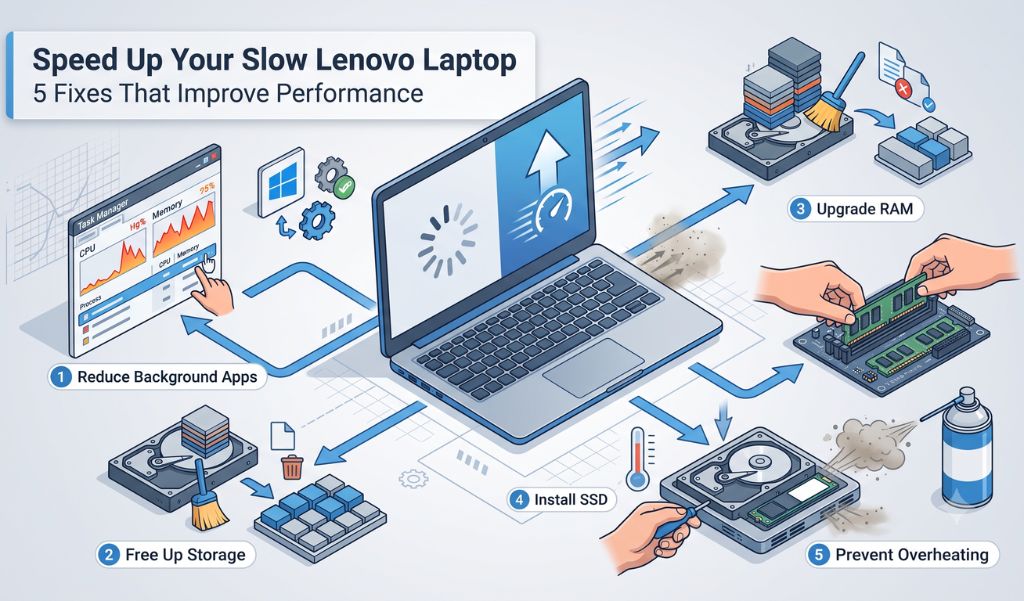
Follow this ordered plan. It saves time and prevents costly mistakes.
- Open Task Manager with Ctrl+Shift+Esc and review CPU and memory.
- Disable startup apps you do not recognize or use each day.
- Run Lenovo Vantage and install all driver and BIOS updates.
- Uninstall bloatware through Settings then Apps and Features.
- Check storage and delete files until at least 20% stays free.
- Scan for malware using Windows Security or a trusted tool.
- If still slow, consider a RAM or SSD upgrade from a known brand.
Tip: Back up files to an external drive before you change hardware or reset Windows.
According to Crucial memory, moving from 4GB to 8GB RAM can improve responsiveness by up to 30% in daily tasks. That upgrade alone fixes many complaints about a Lenovo laptop running so slow.
Free Software Steps in Detail
- Task Manager startup tab shows the impact rating for each app.
- Lenovo Vantage has a Security and Performance scan button on the home page.
- Windows Storage Sense can auto delete temp files when low on space.
What Hardware Upgrades Make Sense?
Some Lenovo models let you swap parts. Others seal the memory permanently.
- ThinkPad T and X series usually allow RAM and SSD replacement.
- IdeaPad 3 and 5 often have one extra SSD slot for expansion.
- Yoga and some slim models solder RAM, so plan before purchase.
- Legion gaming laptops support dual drives and higher speed memory.
According to Wikipedia data, SSDs deliver read speeds near 550 MB/s while old hard drives sit near 100 MB/s. The speed gap explains why a drive swap feels like a new machine.
Important: Check your exact model number on Lenovo support before buying parts. A wrong slot type wastes money.
Common Myths vs Facts
Myth: Adding RAM always fixes a slow Lenovo laptop.
Fact: RAM helps only if the bottleneck is memory. A failing hard drive or active malware will still cause lags after the upgrade.
Myth: Defragging an SSD speeds it up.
Fact: Wikipedia data shows SSDs need no defrag and doing so wears the drive. Windows automatically optimizes SSDs with trim commands.
Myth: Lenovo laptops are just poorly built and slow by nature.
Fact: Lenovo builds enterprise ThinkPads that match any brand in reviews. Slowness usually comes from software clutter or user habits, not the hardware design.
Frequently Asked Questions
Why is my Lenovo laptop running so slow after a Windows update?
Windows updates often run background indexing and cache builds for a few hours. According to Microsoft support, this settles within a day. Restart once and keep the laptop plugged in.
How do I check if my Lenovo laptop has a virus?
Open Windows Security and run a full scan. Many viruses hide as fake Lenovo Vantage copies. Remove anything flagged and reboot to clear memory.
Can a full hard drive really slow my Lenovo laptop?
Yes. When free space drops below 10%, the system cannot create temp files. This forces constant disk cleanup and stalls apps. Keep at least 20% free for smooth use.
Should I use Lenovo Vantage to speed up my laptop?
Yes. Lenovo Vantage updates drivers, BIOS, and controls fan curves. It resolves many performance bugs with one click. Install it from the Microsoft Store on supported models.
What is the cheapest fix for a Lenovo laptop running so slow?
Disabling startup programs costs nothing and often restores speed. A free SSD clone from an old drive also helps. Hardware upgrades should be your last step after free tweaks.
Final Thoughts
A Lenovo laptop running so slow usually points to software clutter or heat, not bad hardware. Start with free fixes like closing apps and updating drivers. A small RAM or SSD upgrade then brings the machine back to life.